Speaker Diarization Explained: How Transcripts Know Who Spoke
Speaker diarization explained: how AI separates speakers in a transcript, how it differs from speaker recognition, what breaks it and how to get better labels.
Also available in: Русский, Українська, Dansk, Deutsch, Español, Français, Italiano, Magyar, Nederlands, Norsk bokmål, Polski, Português (Brasil), Suomi, Svenska, Türkçe, Ελληνικά, עברית, العربية, 한국어, 日本語, 中文(中国), 中文(台灣), Indonesia, Tiếng Việt
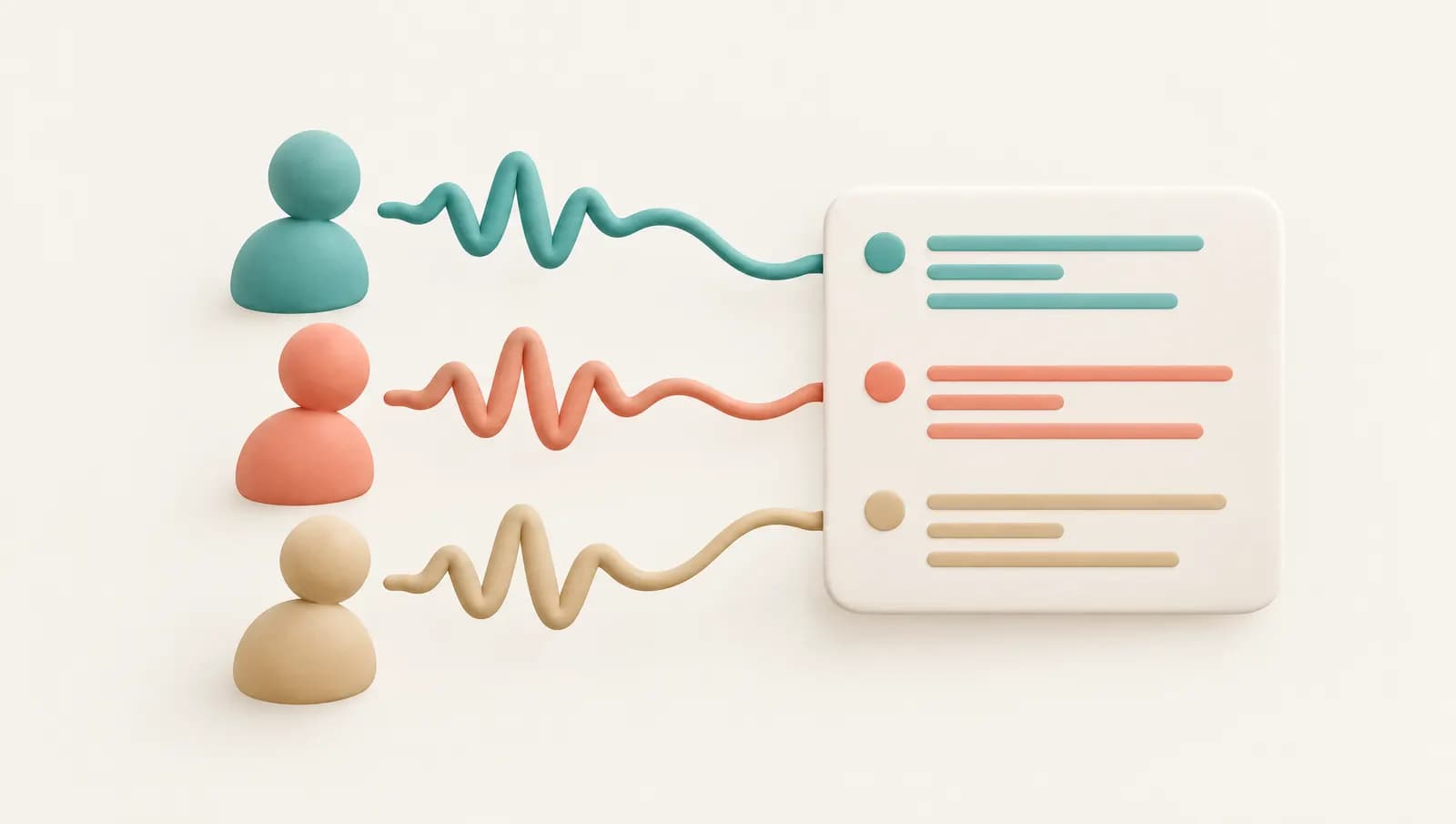
Speaker diarization is the step in automatic transcription that answers "who spoke when": it splits a recording into segments, groups the segments that sound like the same voice, and labels them Speaker 1, Speaker 2 and so on. It does not know anyone's name; you, or a system that already knows the participants, add names afterwards. It works well on clear recordings with a few distinct voices and struggles with overlapping speech, similar voices, phone audio and large groups.
This guide explains diarization in plain terms, how it differs from speaker recognition, how it works under the hood, what breaks it, and how to get a transcript with speaker labels you can trust.
What is speaker diarization?
A raw transcript is a wall of text. Diarization turns it into a conversation:
Speaker 1  00:00:03  Thanks for joining. Shall we start with the budget?
Speaker 2  00:00:07  Sure. We're about ten percent over on travel.
Speaker 1  00:00:12  Okay, what's driving that?
The term comes from "diary": the system keeps a log of which voice is active at each moment. In most transcription tools, diarization runs alongside speech recognition. The speech model produces words with timestamps, the diarization model produces speaker segments with timestamps, and the two are aligned so each word or sentence gets a speaker label.
If you transcribe interviews, meetings or podcasts, these labels are what make the text usable: you can quote the right person, count who spoke most, and skim a long call by speaker.
Diarization vs speaker recognition
The two are often confused, and many product pages use "speaker identification" loosely for both.
| Speaker diarization | Speaker recognition | |
|---|---|---|
| Question it answers | Who spoke when? | Who is this person? |
| Needs prior voice samples | No | Yes, an enrolled voiceprint or reference clip |
| Output | Anonymous labels (Speaker 1, Speaker 2) | A name or an identity match |
| Typical use | Transcripts of interviews, meetings, podcasts | Voice login, call-centre verification, matching known speakers |
| Sub-types | Offline (whole file) or streaming | Identification (one of many) and verification (is it really you?) |
Some tools blend the two. A meeting platform knows which signed-in participant's microphone is active, so it can show names without any voice analysis. Some apps let you tag a voice once and then try to recognise it in later recordings. OpenAI's diarization transcription model, for example, accepts short reference clips for known speakers, according to its documentation. Plain diarization on an uploaded file, which is what most transcription services do, ends with generic labels that you rename.
How speaker diarization works
Modern systems differ in detail, but most follow the same broad stages. The open-source pyannote.audio toolkit, one of the most widely used diarization libraries, describes its pipeline in Hervé Bredin's Interspeech 2023 paper "pyannote.audio 2.1 speaker diarization pipeline: principle, benchmark, and recipe" as three main stages: local segmentation over short sliding windows, speaker embeddings, and global clustering.
1. Find where speech is
Voice activity detection marks which parts of the recording contain speech and discards silence, music and noise. Mistakes here cascade: missed speech gets no label, and noise mistaken for speech can create a phantom speaker.
2. Segment the speech
The speech is cut into short pieces where, ideally, only one person talks. Newer neural models look at a few seconds at a time and estimate which speakers are active in each frame, which also lets them flag overlapping speech.
3. Turn each segment into a voice embedding
A neural network converts each segment into an embedding: a list of numbers that captures what the voice sounds like (pitch, timbre, speaking style) rather than what is being said. Segments from the same person should produce embeddings that sit close together.
4. Cluster the embeddings
A clustering algorithm groups similar embeddings. Each group becomes a speaker. The hard part is deciding how many groups there are: too few and two people merge into one label; too many and one person is split across several labels. Some services let you tell them the expected number of speakers to help with this.
5. Align with the words
Finally, the speaker segments are matched to the word timestamps from speech recognition, so each line of the transcript gets a label. Errors at the boundaries are common: the first word of a reply can land on the previous speaker.
Researchers measure quality with the diarization error rate (DER), which combines missed speech, false alarms and confused speakers. Published numbers vary hugely between datasets, from clean broadcast audio to noisy multi-party meetings, so a single "accuracy" figure tells you little about your own recordings.
What breaks speaker separation
- Overlapping speech. When two people talk at once, one voice usually wins the label and the other's words may be lost or misattributed.
- Similar voices. Two people of similar age, gender and accent produce embeddings that sit close together and may merge.
- Phone and compressed audio. Narrowband phone lines and heavily compressed voice messages remove much of the detail embeddings rely on.
- Many speakers. Each extra voice makes clustering harder, especially if some people only speak briefly.
- Short turns. "Yeah", "right" and other one-word interjections are too short to produce a reliable embedding.
- One distant microphone. A laptop in the middle of a room picks up echo and uneven levels; the same person can sound different depending on where they sit.
- Changing conditions. A speaker who moves, switches from headset to speakerphone, or starts whispering can be split into two labels.
- Background noise and music. Both can be mistaken for speech or blur voice characteristics.
How to separate speakers in a transcript more reliably
Most of the gains come from the recording, not the software. Our transcription accuracy tips cover audio quality in general; for speakers specifically:
- Give each person their own microphone if you can, or at least keep everyone at a similar distance from a shared one.
- If you can record each person on a separate track (a podcast setup, or a stereo call recording with one side per channel), transcribe the tracks separately. Separate channels are more reliable than any voice clustering.
- Ask people not to talk over each other during the parts you need verbatim, and leave a beat before replying.
- Avoid speakerphone and video-call audio routed through room speakers when a direct recording is possible.
- Have each participant say their name at the start. It does not train the model, but it makes renaming labels quick.
- Keep one conversation in one file where you can. If you transcribe it in parts, the labels will not line up: Speaker 1 in part one may be Speaker 2 in part two.
- Check the first few minutes of the transcript. If two people are merged, the problem usually persists for the whole file.
For interviews, our interview transcription guide covers microphone placement and consent; for calls, see the guide to meeting transcription for Google Meet, Zoom and Teams.
Renaming and fixing speakers in Audiotexta
When you upload a file, paste a link or record from the microphone in Audiotexta, the transcript comes back with speaker labels and timestamps. To turn Speaker 1 and Speaker 2 into real names, rename the speaker in the editor; the new name applies to that speaker's segments throughout the transcript. The editor highlights words during playback and lets you click any word to jump to that point in the audio, which makes it quick to check a doubtful turn by ear and correct it.
Rename and correct before you export, so the names carry into TXT, SRT and VTT (all available on the free plan) or DOCX, PDF, CSV and JSON on Pro. In subtitle files, speaker names help viewers follow dialogue; in CSV or JSON they let you analyse who said what.
Like every diarization system, Audiotexta works best on clear audio with distinct voices, and it does not carry speaker names from one file to the next: each recording starts with fresh, anonymous labels.
Tools that transcribe with speaker labels
Speaker labels are now common, but they are implemented differently. Here is a brief overview based on each vendor's documentation or, where noted, third-party descriptions (checked October 2026; features change, so confirm on the vendor's site).
| Tool | Type | Speaker labels | Notes |
|---|---|---|---|
| Audiotexta | Web app, extension, API | Yes, automatic | Rename speakers in the editor; labels are per file. |
| Otter.ai | Meeting and transcription app | Yes | Guides describe tagging speakers so Otter can recognise voices in later recordings. |
| Descript | Audio and video editor | Yes, automatic speaker detection | Help centre lists a file-length limit for automatic detection; you label voices from samples. |
| TurboScribe | Web transcription | Yes | Described by the vendor as automatic speaker detection and labelling. |
| Zoom, Teams, Google Meet transcripts | Built into meeting platforms | Names from participant accounts | Uses who is signed in rather than voice analysis; people sharing one room device may appear as one speaker. |
| OpenAI API (gpt-4o-transcribe-diarize) | Developer API | Yes | Returns segments with speaker labels; optional reference clips for known speakers. |
| AssemblyAI | Developer API | Yes (speaker_labels) | Lets you set the expected number or range of speakers. |
| Deepgram | Developer API | Yes (diarization option) | Returns a speaker number on each word. |
| Whisper (open source) | Local model | No | Combine with a diarization model such as pyannote.audio. |
| pyannote.audio | Open-source library | Diarization only | Does not transcribe; pair with a speech recognition model. |
Meeting platforms have a real advantage here: when everyone joins from their own account, they know names without guessing from voices. Apps that remember voiceprints, such as Otter, save renaming time if you record the same people often. For uploaded recordings from interviews, phone calls or podcasts, voice-based diarization is the only option, and a quick review and rename in the editor is part of the job.
Frequently asked questions
What is speaker diarization in simple terms?
Speaker diarization is the process of working out who spoke when in a recording. The system splits the audio into segments, groups segments that sound like the same voice, and labels them Speaker 1, Speaker 2 and so on, without knowing anyone's name.
What is the difference between speaker diarization and speaker identification?
Diarization separates voices from each other and gives them anonymous labels. Speaker identification matches a voice to a known person, which requires a previously enrolled voice sample or another source of identity, such as a meeting platform knowing who is signed in.
Can Whisper separate speakers?
The open-source Whisper models transcribe speech but do not label speakers on their own. Developers usually combine Whisper with a separate diarization model such as pyannote.audio, and many hosted services do this step for you.
Why does my transcript mix up speakers?
The most common causes are overlapping speech, voices that sound similar, short interjections, low-quality phone or compressed audio, background noise, and many people in one recording. Fixing the recording setup usually helps more than any setting.
How do I add real names to speaker labels?
Most transcription editors let you rename a generic label such as Speaker 1 once, and the change applies to every segment with that label. In Audiotexta you rename speakers in the transcript editor before exporting.
Try Audiotexta free
Upload a file or paste a link and get a transcript in minutes.