How to Extract Audio from Video (MP4 to MP3): 6 Free Ways
Extract audio from video for free with a browser converter, VLC, FFmpeg, Audacity or your phone, plus when to pick MP3, M4A or WAV and which bitrate to use.
Also available in: Русский, Українська, Dansk, Deutsch, Español, Français, Italiano, Magyar, Nederlands, Norsk bokmål, Polski, Português (Brasil), Suomi, Svenska, Türkçe, Ελληνικά, עברית, العربية, 한국어, 日本語, 中文(中国), 中文(台灣), Indonesia, Tiếng Việt
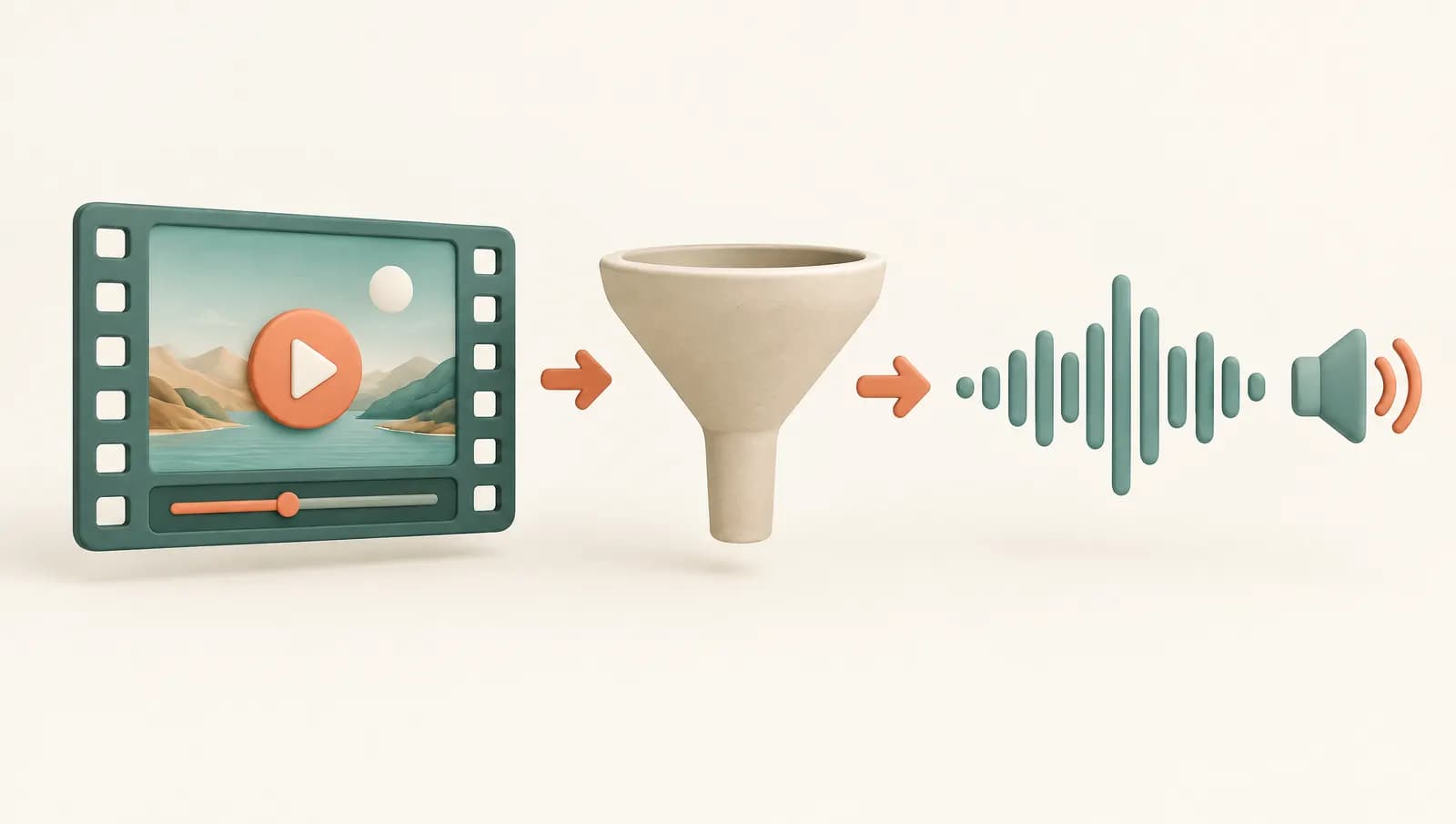
To extract audio from a video, open it in a converter that keeps only the soundtrack and saves it as an audio file: a browser-based video to audio converter, the free VLC player, or one FFmpeg command will all turn an MP4 or MOV into an MP3 in a minute or two. For speech, MP3 at 128 kbps is plenty; for music, use 192 kbps or more, or copy the original track into an M4A file so nothing is re-encoded.
Below are six free methods, from the quickest to the most flexible, followed by a table on choosing between MP3, M4A and WAV, bitrate advice, and what to do if what you really need is the spoken text.
The quickest way: a video to audio converter in your browser
If you do this once in a while, a browser converter is the least effort. Audiotexta's video to MP3 converter and the dedicated MP4 to MP3 converter run entirely in your browser tab: the file is decoded and encoded on your own computer and is not uploaded to a server, which matters for private recordings.
- Open the converter in Chrome or Edge.
- Drop the video file onto the page.
- Choose MP3 (128 kbps is right for speech) or WAV.
- Convert and download. The picture is discarded; only the audio is kept.
Two limits to know about. Because decoding uses the browser's own codecs, Chrome and Edge handle the most formats, including MP4 and WebM, while Safari and Firefox may refuse some files. And very large files, roughly over 500 MB or two hours, can run out of browser memory. For those, use VLC or FFmpeg below.
Be careful with other "free online converters" that ask you to upload the file. Many work fine, but your video then sits on someone else's server, and some add queues, size caps or watermarks.
Extract audio from video with VLC (Windows, Mac, Linux)
VLC is a free media player that most people already have, and its Convert/Save dialog doubles as a video to audio converter. On Windows and Linux:
- Open VLC and choose Media > Convert / Save (or press Ctrl+R).
- Click Add, select your video, then click the Convert / Save button itself (not the small arrow next to it).
- In Profile, choose Audio - MP3. Scroll the list if you do not see it straight away.
- Optional: click the wrench icon next to the profile, open the Audio codec tab and set the bitrate, for example 192 kbps.
- Click Browse, pick a folder and type a file name ending in
.mp3. - Click Start. The progress bar on the timeline shows the conversion; when it reaches the end, the MP3 is ready.
On a Mac the same option is under File > Convert / Stream, where you choose an audio profile and click Save as File. Menu labels shift slightly between VLC versions, but the profile list and the Audio - MP3 option have been stable for years.
VLC is a good choice for MOV to MP3 too, because it decodes almost any format, including files that a browser refuses. Its drawback is that it converts one file at a time unless you add several to the list, and the dialog is not very forgiving: a missing file extension in the destination name is the most common reason for an output that will not play.
FFmpeg: MP4 to MP3 and copying without re-encoding
FFmpeg is the free command-line tool that most converters, including VLC, are built on. It is the best option for batches, very large files, and anyone who wants exact control. After installing it, open a terminal in the folder with your video.
To convert MP4 to MP3:
ffmpeg -i input.mp4 -vn -acodec libmp3lame -q:a 2 output.mp3-vn drops the video stream, libmp3lame is the MP3 encoder, and -q:a 2 asks for variable bitrate at high quality, which works out at roughly 170–210 kbps. Use -q:a 4 for smaller files of speech, or -b:a 128k if you need a fixed bitrate. The same command works for MOV to MP3; just change the input name.
To keep the original audio with no quality loss at all, copy the track instead of re-encoding it:
ffmpeg -i input.mp4 -vn -acodec copy output.m4aThis takes seconds even for long videos, because nothing is decoded. It works when the audio inside the video is AAC, which is the case for most MP4 files and most iPhone MOV files. If FFmpeg reports an error, check the codec with ffprobe input.mp4; for a raw AAC file you can also write -acodec copy output.aac.
For a WAV file for editing, use -acodec pcm_s16le output.wav. To convert every MP4 in a folder on macOS or Linux:
for f in *.mp4; do ffmpeg -i "$f" -vn -acodec libmp3lame -q:a 2 "${f%.mp4}.mp3"; doneAudacity and QuickTime: desktop apps you may already have
Audacity
Audacity is useful when you want to trim the audio, remove a noisy section or normalise the volume before saving. To open video files such as MP4 or MOV, it needs the optional FFmpeg library, which Audacity cannot ship itself for patent reasons. The Audacity support site links to installers for Windows and macOS; on Linux, install ffmpeg from your package manager. If Audacity does not detect it, point to the library under Preferences > Libraries.
Once FFmpeg is installed, open or import the video, edit if needed, and save with File > Export Audio, choosing MP3, WAV or another format. Label names vary a little between Audacity versions.
QuickTime Player on Mac
Without installing anything, open the video in QuickTime Player and choose File > Export As > Audio Only. According to Apple's QuickTime guide, the result is an MPEG-4 audio file, which is an M4A with an AAC track. That plays almost everywhere; if you specifically need an MP3, convert the M4A afterwards.
Video to audio on iPhone and Android
iPhone and iPad
iOS has no "save as audio" button in Photos, but the built-in Shortcuts app can do it. Create a shortcut that takes a video from the share sheet, adds the Encode Media action with Audio Only switched on, and ends with Save File set to ask where to save. Run it from the share sheet of a video and you get an M4A file in the Files app. Several ready-made shortcuts do the same, but check what any downloaded shortcut does before you run it.
Android
There is no standard built-in tool on Android. Some manufacturers' gallery or video editor apps can export audio, so check the editing options on your phone first. Otherwise, a browser converter in Chrome works for smaller files, and the Play Store has many "video to MP3" apps. Pick one with good reviews, avoid apps that ask for contacts or other unrelated permissions, and be aware that many upload files or show ads.
For long phone videos, the simplest route is often to move the file to a computer and use VLC or FFmpeg.
Which format to choose: MP3 vs M4A vs WAV
The right format depends on where the audio goes next. Sizes below are for one hour of stereo audio.
| Format | Compression | Size per hour (approx.) | Compatibility | Best for |
|---|---|---|---|---|
| MP3 128 kbps | Lossy | ~58 MB | Plays everywhere | Speech, podcasts, sharing, transcription |
| MP3 192–320 kbps | Lossy | ~86–144 MB | Plays everywhere | Music where file size still matters |
| M4A (AAC, copied) | Lossy, but no extra loss | Same as the source track | Very wide; Apple devices natively | Keeping original quality in a small file |
| WAV 16-bit 44.1 kHz | Uncompressed | ~635 MB | Wide, but large files | Editing, mixing, archiving a master |
Bitrate and quality: what settings to use
- You cannot add quality. The extracted audio can never be better than the soundtrack inside the video. Converting a 128 kbps AAC track to a 320 kbps MP3 only makes the file bigger.
- Avoid needless re-encoding. Each lossy conversion throws away a little detail. If the source is AAC, copying it to M4A is lossless; going AAC to MP3 is a second compression.
- For speech, MP3 at 96–128 kbps is enough, and mono halves the size with no real downside for a single speaker.
- For music, use 192 kbps or more, or VBR such as FFmpeg's
-q:a 2. - For editing, export WAV, edit, and compress only once at the end.
Our guide to audio formats for transcription goes deeper into MP3, M4A, WAV, OGG and FLAC, including file size limits.
A note on copyright
Only extract audio from videos you made yourself or have the right to use: your own recordings, meetings you are allowed to keep, licensed stock footage, or content whose owner has given permission. Pulling the soundtrack from a film, a music video or someone else's upload and sharing it can infringe copyright, and many platforms' terms forbid downloading content at all. Converting a file does not change who owns it.
Next step: transcribe the audio
Many people extract audio because what they actually want is the words: quotes from an interview, notes from a lecture, subtitles for a clip. In that case you can often skip the conversion. Most transcription services accept video directly; with Audiotexta's video to text tool you upload the MP4 or MOV as it is, or paste a link, and get a transcript with speaker labels and timestamps that you can export as TXT, SRT or VTT. The free plan needs no account and covers files up to 30 minutes and 120 minutes a month; DOCX and PDF exports are on Pro.
Extracting the audio first still helps in two cases: when a video is several gigabytes and an MP3 of the same recording is a fraction of the size, and when you want to trim silence or noise before transcribing. A 128 kbps MP3 or a copied M4A carries everything a speech-recognition model needs; converting to WAV does not make transcripts more accurate, it just makes uploads slower.
For the full process, from preparing the recording to cleaning up the result, see how to transcribe audio to text and our guide to transcribing video to text.
How to extract audio from a video in your browser
- Open the converter. Open Audiotexta's video to MP3 converter in Chrome or Edge on a computer. No account is needed.
- Add the video. Drag an MP4, WebM or other video file onto the page or click to choose it. The file is processed in your browser and is not uploaded.
- Choose the quality. Pick MP3 at 128 kbps for speech, or a higher bitrate if the video contains music. Choose WAV if you need an uncompressed file for editing.
- Convert and download. Start the conversion and save the audio file. The picture is discarded and only the soundtrack is kept.
- Transcribe if you need the words. If you want the spoken text rather than the audio, upload the audio or the original video to a transcription tool and export TXT or SRT (free), or DOCX on a paid plan.
Frequently asked questions
How do I extract audio from a video for free?
Use a free browser converter, VLC's Convert/Save dialog, or a single FFmpeg command. All three keep only the soundtrack and save it as MP3 or another audio format, and none of them requires a paid account.
Does converting MP4 to MP3 lose quality?
A little, because the audio in most MP4 files is already compressed AAC and MP3 compresses it again. At 192 kbps or higher the difference is hard to hear. If you want zero loss, copy the original AAC track into an M4A file instead of re-encoding.
How do I convert MOV to MP3?
The same tools work for MOV files from iPhones and cameras: VLC's Convert/Save with the Audio - MP3 profile, or FFmpeg with the same command as for MP4. If a browser converter refuses a MOV file, the browser cannot decode it, so use VLC or FFmpeg instead.
Can I extract audio from a video on iPhone without an app?
Yes, with the built-in Shortcuts app. A shortcut that uses the Encode Media action with Audio Only switched on saves the soundtrack as an M4A file. On a Mac, QuickTime Player's File > Export As > Audio Only does the same.
Do I need to extract the audio before transcribing a video?
Usually not. Most transcription services, including Audiotexta, accept MP4, MOV and other video files directly. Extracting the audio first is useful when the video file is too large to upload or when you want a smaller file to share.
Try Audiotexta free
Upload a file or paste a link and get a transcript in minutes.