Android Voice Recorder to Text: Pixel, Samsung and More
How to transcribe a recording on Android: Pixel Recorder, Samsung Transcript Assist, Xiaomi and other phones, plus exporting .m4a files for long recordings.
Also available in: Русский, Українська, Dansk, Deutsch, Español, Français, Italiano, Magyar, Nederlands, Norsk bokmål, Polski, Português (Brasil), Suomi, Svenska, Türkçe, Ελληνικά, עברית, العربية, 한국어, 日本語, 中文(中国), 中文(台灣), Indonesia, Tiếng Việt
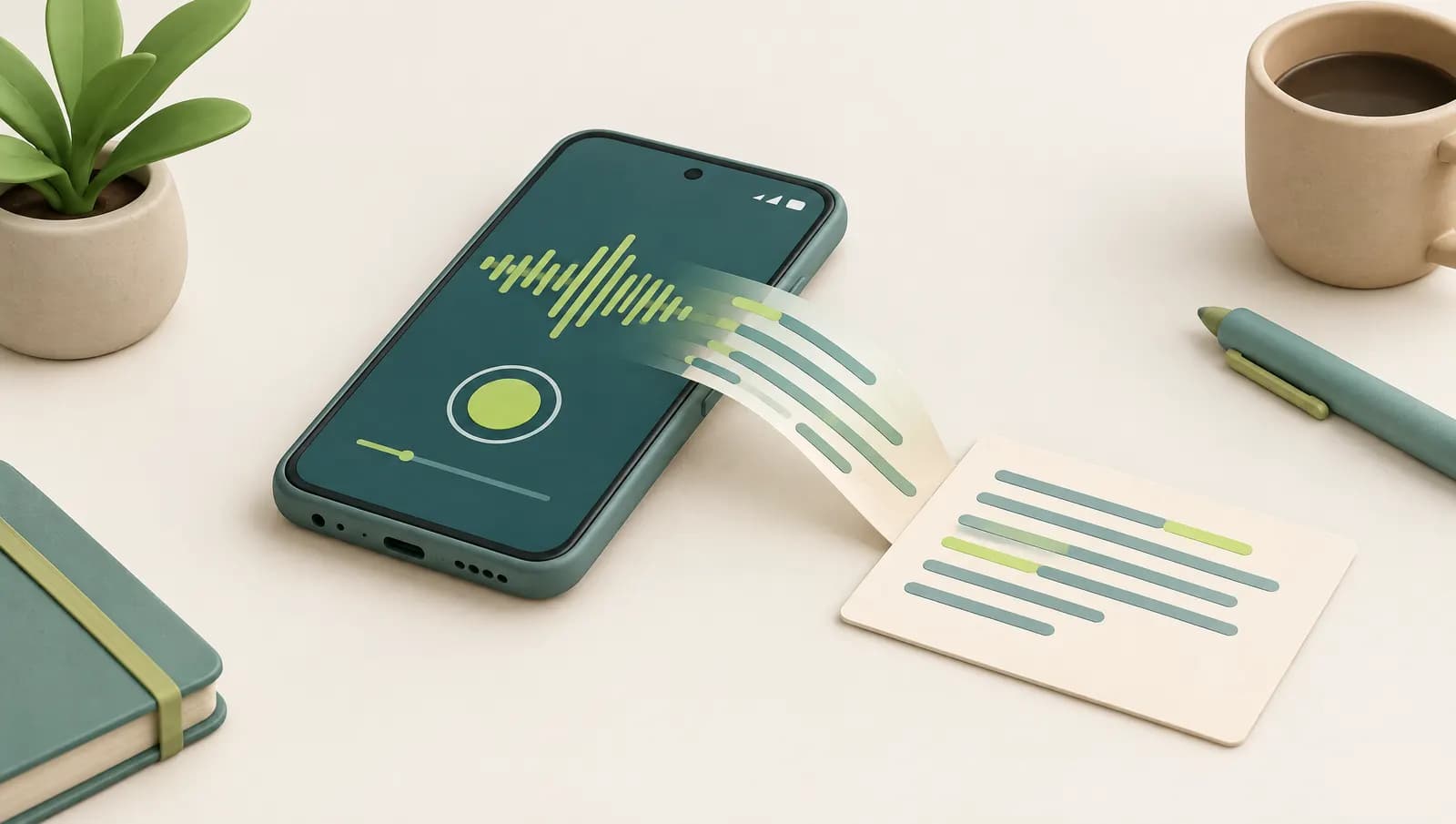
Many Android phones can now transcribe a recording without extra apps: Google's Recorder on Pixel phones writes the transcript while you record, and Samsung's Voice Recorder turns recordings into text with Galaxy AI's Transcript Assist. If your phone has no built-in option, or the recording is long, multilingual or full of speakers, share the audio file (usually .m4a) and upload it to a transcription tool. This guide covers each major brand, how to export the file, and how to handle languages and speakers.
Android is not one product, so "how do I turn a voice memo into text on Android" has a different answer on a Pixel, a Galaxy, a Xiaomi or a budget phone. Start with the table to see where your phone stands.
Android voice recorder transcription by phone brand
Details below were checked against Google, Samsung and Xiaomi support pages in October 2026. Features depend on model, software version and region, so treat this as a guide and check your own phone.
| Phone | Built-in app | Transcription | Languages | Export |
|---|---|---|---|---|
| Google Pixel | Recorder | Live transcript while recording; Transcribe again for other languages | Live: English, French, German, Japanese on Pixel 3 to 5a; more on Pixel 6 and later. Re-transcribe: about 40 languages | Audio file, transcript .txt, Google Docs |
| Samsung Galaxy | Voice Recorder | Transcript Assist (Galaxy AI) on select models with One UI 6.1+ | About 20 languages, per Samsung | Voice file (.m4a) or Text file, Samsung Notes |
| Xiaomi | Recorder (HyperOS) | AI transcription on some models, such as the 14T series | Varies by model and region | Varies |
| Other brands | Varies | Often none, or a basic speech-to-text mode | Varies | Audio file |
| Any phone | Live Transcribe | Live captions only, not files | Many languages | Copy text, kept 3 days |
Pixel Recorder transcription
Google's Recorder app is the most complete built-in option on Android, and it is exclusive to Pixel phones and the Pixel Tablet.
How it works. Start a recording and switch from Audio to Transcript: words appear as people speak. Google designed Recorder's live transcription to run on the phone, so for supported languages it works without sending audio anywhere. You can search inside recordings, touch and hold a word to fix it with Edit word, and on Pixel 6 and later Recorder can label different speakers.
Languages. According to Google's help page, real-time transcription on Pixel 3 to Pixel 5a covers several English variants plus French, German and Japanese. Pixel 6 and later add Mandarin Chinese, Hindi, Italian, Spanish and more. For anything else, open the recording, tap More > Transcribe again and pick from a longer list of roughly 40 languages. Google notes that re-transcribing may process the audio on its servers. You can also turn on Detect language in Recorder settings.
Summaries. On Pixel 8 and later, Recorder can summarise transcripts in a handful of languages. Summaries run in Google's cloud.
Exporting. Touch and hold a recording and tap Share: choose File and then Audio or Transcript, or Transcript (.txt) for plain text. To get it into Google Docs, open the recording, tap More > Share, then Share transcript to Google Docs and choose an account. Backed-up recordings are also available at recorder.google.com.
Samsung Voice Recorder: transcribe with Transcript Assist
If you want to transcribe with Samsung Voice Recorder, the feature you need is Transcript Assist, part of Galaxy AI.
- Open Voice Recorder and select a recording.
- Tap the Transcript Assist icon (four stars) at the top.
- Tap Transcribe and choose the language if asked. The transcript appears on screen.
- From the same menu you can Translate the text or Summarize it.
- To share, open the transcript, tap More options (⋮) > Share and choose Text file, or Add to Samsung Notes.
Which phones. Samsung's US support page says Transcript Assist works on select Galaxy phones and tablets running Android 14 with One UI 6.1 or higher. Samsung has named the Galaxy S23 and S24 series and later flagships, recent Z Fold and Z Flip models, some Galaxy Tab models and select A-series phones, but the exact list changes, so check Samsung's Galaxy AI device page for your model. On One UI 7 and later, phone call recordings can be transcribed and summarised the same way.
Languages and limits. Samsung lists about 20 transcript languages, including English, Spanish, Portuguese (Brazil), French, German, Italian, Polish, Russian, Korean, Japanese, Chinese, Hindi, Arabic, Thai, Vietnamese and Indonesian, and you may need to download a language pack. Summaries require a Samsung account, short recordings cannot be summarised, and Samsung's support pages mention a limit of about three hours per recording. Settings live under Voice Recorder > Menu > Settings > Transcript Assist, including auto-detect language.
Older Galaxy phones without Galaxy AI may show a simpler speech-to-text recording mode, or nothing at all.
Xiaomi, OnePlus and other brands
Outside Google and Samsung, support is uneven.
- Xiaomi. On some HyperOS models, Xiaomi's Recorder can convert recordings to text. Xiaomi's FAQ for the 14T series says to open the recording, tap Text and pick the source language; speakers are classified automatically, and summaries are available. Availability depends on model, region and language, and reports say the feature relies on cloud processing, so it needs a connection.
- OnePlus, Motorola, Oppo, Nokia and others. Some recent models add AI recording features, but we could not confirm a consistent, documented transcription feature across these brands at the time of writing. Open your recorder app and look for a Transcribe or Text button; if there is none, use the export route below.
- Third-party recorder apps from Google Play often transcribe in the cloud with their own limits and privacy terms. Read them before installing.
Live Transcribe: live captions, not files
Google's Live Transcribe & Sound Notifications app is often suggested for "Android voice to text", but it does something different. It shows real-time captions of speech around you through the microphone, in many languages, and it was designed as an accessibility tool for people who are deaf or hard of hearing.
It does not open saved recordings. If transcription history is on, transcripts are kept on the device for three days so you can copy them elsewhere. Live Transcribe is excellent for following a conversation as it happens; it is not a way to turn last week's voice memo into text. For dictating your own messages and notes, see our voice to text and dictation guide.
How to transcribe a recording on Android with any phone
This route works on every Android phone, and it is the better option for long recordings, unsupported languages or meetings with several speakers.
- Find the file. In your recorder, touch and hold the recording and tap Share. Choose the audio file rather than a link.
- Check the format. Samsung Voice Recorder saves .m4a, which most recent apps also use. Older recorders and call recorders may produce .amr or .3gp. Our guide to audio to text converter formats covers which formats tools accept and how to convert the rare one that fails.
- Upload it. Open Audiotexta's voice memo to text tool or the M4A to text converter in your phone browser and pick the file, or move it to a computer first via Google Drive, email or Nearby Share.
- Choose options. Leave language detection on, or pick the language; turn on speaker labels for interviews and meetings.
- Review and export. Play the audio alongside the text, fix names and numbers, rename speakers, and copy the result or export it.
The free plan needs no account and handles files up to 30 minutes, within 120 minutes per month, with TXT, SRT and VTT exports. Longer recordings, up to 10 hours per file, and DOCX or PDF exports are on the Pro plan.
Other languages, speakers and long recordings
Built-in recorders are strongest for short notes in the main languages. Three situations push you towards a file-based tool:
- Other languages and mixed speech. Pixel's live transcript and Samsung's Transcript Assist each support a defined list. Audiotexta recognises 98+ languages and can translate the transcript into 50+ languages on Pro, which helps with a lecture in Portuguese or a family voice note in Turkish.
- Several speakers. Pixel 6 and later label speakers; many other phones do not. A tool with speaker labels and renaming turns a recorded meeting or interview into a readable conversation.
- Long recordings. Phones can record for hours, but reading a three-hour transcript on a small screen is hard. Timestamps, click-to-jump playback and AI summaries with key points and action items make long recordings usable. For lectures, see lecture notes from recordings.
If you also use an iPhone, our iPhone voice memos to text guide covers Apple's built-in transcripts and the same export route.
Privacy tips
- On-device first. Pixel's live transcript keeps audio on the phone for supported languages. Re-transcription, summaries and Galaxy AI features may use the cloud, so check each feature's note.
- Know where uploads go. With any online service, check the processing location and how long files are kept. Audiotexta deletes files on a schedule and does not use your content to train models.
- Get consent. Recording people, and especially phone calls, is regulated differently by country. Tell people you are recording, and keep transcripts as private as the audio.
Whichever phone you have, the pattern is the same: use the recorder's own transcript for quick notes, and export the audio file when the recording is long, multilingual or worth keeping.
How to transcribe a recording on Android with any phone
- Try the built-in recorder first. On a Pixel, open the recording in Recorder and tap Transcript. On a Samsung Galaxy with Galaxy AI, open the recording in Voice Recorder and tap Transcript Assist, then Transcribe.
- Share the audio file. If your phone has no transcription or the recording is long or in another language, touch and hold the recording, tap Share and choose the audio file. Most recorders save .m4a; older apps and call recorders may use .amr or .3gp.
- Save it where you can reach it. Send the file to Files, Google Drive, email or Nearby Share so you can upload it from the phone browser or a computer.
- Upload the file to a transcription tool. Open a service such as Audiotexta in your browser, upload the file, leave language detection on and turn on speaker labels for conversations.
- Review and export the text. Check names and numbers while the audio plays, rename speakers, then copy the text or export it as TXT, or as DOCX or PDF on a paid plan.
Frequently asked questions
Can Android transcribe voice recordings for free?
On many recent phones, yes. Google Recorder on Pixel and Samsung Voice Recorder with Galaxy AI transcribe recordings at no extra cost. Other phones may have no built-in option, in which case you can upload the audio file to a transcription service with a free allowance.
How do I transcribe a recording on Samsung?
On a supported Galaxy phone with One UI 6.1 or later, open Voice Recorder, select the recording, tap the Transcript Assist icon and then Transcribe. Samsung lists around twenty supported languages and may require a Samsung account for some Galaxy AI features such as summaries.
Does Pixel Recorder work offline?
Recorder's live transcription is designed to run on the phone for supported languages. Re-transcribing in another language may process audio on Google's servers, and summaries run in Google's cloud.
Can Live Transcribe transcribe an audio file?
No. Live Transcribe shows real-time captions of speech around you through the microphone. It does not open saved recordings, and its saved history is kept only for a few days.
What format are Android voice recordings?
Most modern recorder apps, including Samsung Voice Recorder, save M4A audio. Older apps and some call recorders use AMR or 3GP. Most transcription tools accept all three.
Try Audiotexta free
Upload a file or paste a link and get a transcript in minutes.