How to See the Transcript on YouTube (Desktop, Mobile, Download)
How to see, search and copy the transcript on YouTube on desktop and mobile, why some videos have none, and how to download a YouTube transcript as a file.
Also available in: Русский, Українська, Dansk, Deutsch, Español, Français, Italiano, Magyar, Nederlands, Norsk bokmål, Polski, Português (Brasil), Suomi, Svenska, Türkçe, Ελληνικά, עברית, العربية, 한국어, 日本語, 中文(中国), 中文(台灣), Indonesia, Tiếng Việt
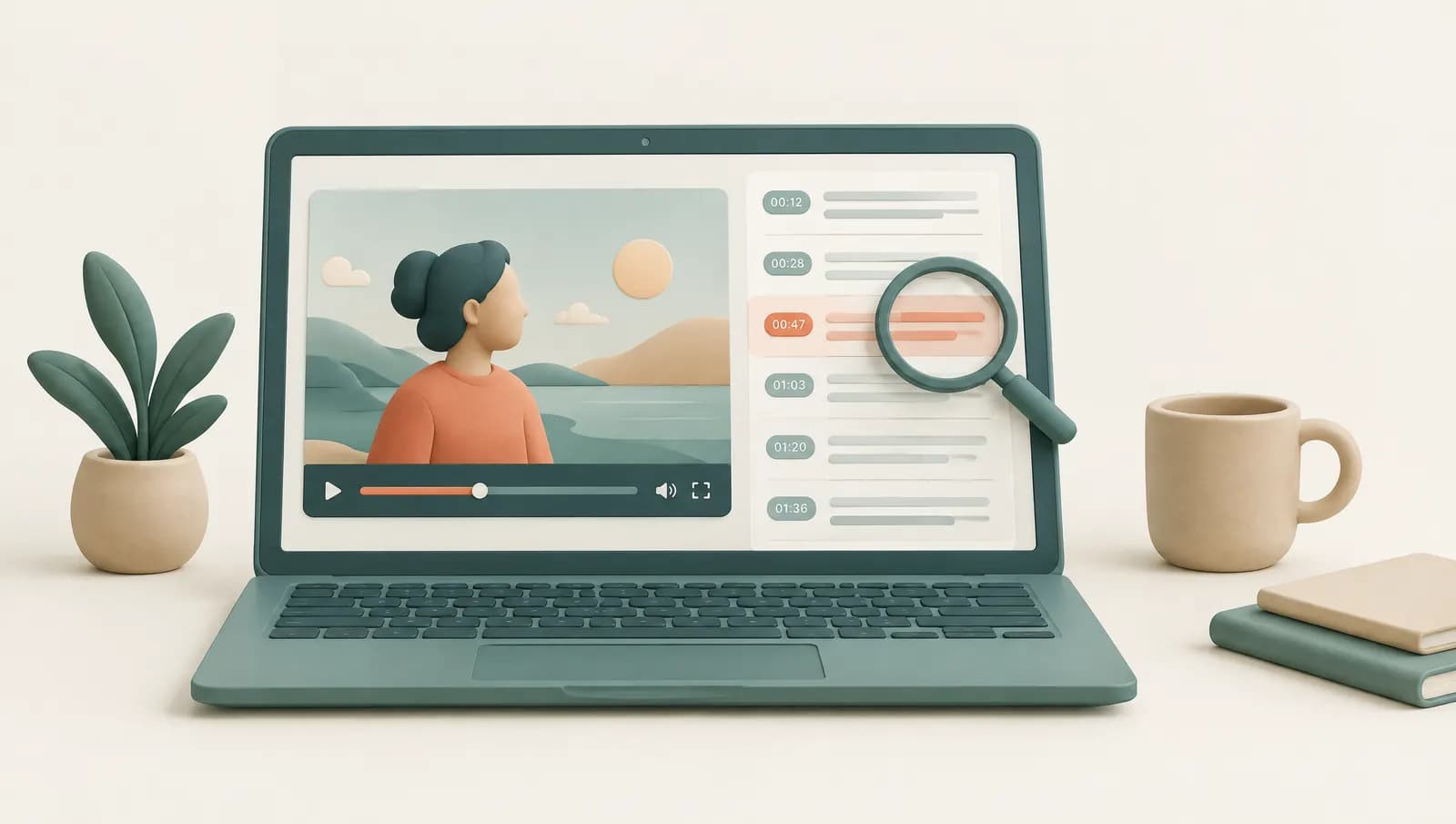
To see the transcript on YouTube on a computer, open the video, click "...more" to expand the description below the title, and click Show transcript; a panel with the full text and timestamps opens next to the player. In the mobile app the same button sits in the expanded description, while mobile browsers often hide it. YouTube has no button to download a transcript, so you either copy the text from the panel or use a tool that exports a file.
Below: how to show the transcript of a YouTube video on each device, searching inside a transcript, two ways to download one, and what to do when the button is missing. One caveat: YouTube rearranges its interface regularly, so labels and positions may drift. The logic has stayed stable for years: the transcript lives in the description area and exists only when the video has captions.
How to see the transcript on YouTube on desktop
Desktop is where the transcript panel works best. The steps are the same in Chrome, Edge, Firefox and Safari:
- Open the video on youtube.com. A player embedded on another website has no description area and no transcript panel; click the YouTube logo in it to open the video on YouTube.
- Expand the description. Click "...more" at the end of the short description under the video title.
- Click Show transcript. Scroll to the bottom of the expanded description. The button usually sits in its own small "Transcript" block, below the chapter list if the video has chapters.
- Read along. A panel opens to the right of the player (or below it in narrow windows), with the text split into short lines and a timestamp in front of each one.
Every line in the panel is clickable: click it and the video jumps to that moment. While the video plays, the current line is highlighted and the panel scrolls with it, which helps with fast speakers or a talk in a language you are still learning.
At the top of the panel there is a three-dot menu with a Toggle timestamps option. Switch timestamps off before you copy anything, otherwise every line arrives with its time code attached. If the video has captions in more than one language, a language selector, usually at the bottom of the panel, lets you switch between them. Close the panel with the X in its top corner.
How to view the transcript in the YouTube mobile app
In the YouTube app for Android and iPhone:
- Open the video.
- Tap ...more under the title (or the title itself) to open the description.
- Scroll down and tap Show transcript.
The transcript opens in a sheet over the lower part of the screen, again with timestamps, and tapping a line jumps the video to that point. That is fine for reading along or finding a moment. It is awkward for anything else: the app does not let you select and copy the transcript the way a computer does, and there is no share or export option. If you need the words in a document, switch to a computer or use one of the download routes below.
Mobile browser: when the option is missing
If you open YouTube in Safari or Chrome on a phone without the app, you land on the mobile website, a lighter version of YouTube. The "Show transcript" option is often missing there, or appears only on some videos.
The usual workaround is to request the desktop version of the page:
- Chrome on Android or iPhone: open the browser menu and switch on Desktop site.
- Safari on iPhone: tap the page settings icon in the address bar and choose Request Desktop Website.
The page reloads with the desktop layout, where the description and the "Show transcript" button behave as described above, and you can select and copy text. It is fiddly on a small screen, but it works when there is no computer nearby.
How to search inside a YouTube transcript
The transcript panel has no search box of its own, but because the transcript text loads into the page, your browser's find function works on it:
- Open the transcript panel on desktop.
- Press Ctrl+F (Windows, Linux, ChromeOS) or Cmd+F (Mac).
- Type a word or a short phrase. Matches in the panel are highlighted; press Enter to step through them.
- Click the highlighted line to jump the video to that moment.
A few habits make this more useful:
- Search for short, distinctive words. Lines break at arbitrary points, so a full sentence often spans two lines and will not match.
- Expect misspellings. Auto-generated captions often get names, brands and jargon wrong. If a term does not turn up, search for a common word that would sit next to it, or try how it might be misheard.
Searching across many videos is a different problem. YouTube's main search bar is not a reliable way to find a phrase spoken inside a channel's videos. For a true "YouTube transcript search" across a series of lectures or interviews, get the transcripts as text files first, then search them all at once on your computer.
The mobile app has no find-in-page, so searching a transcript there means scrolling.
How to download a transcript from YouTube
There is no download button for transcripts on YouTube. Creators can download caption files of their own videos from YouTube Studio, but viewers cannot. That leaves two practical routes.
Option 1: Copy and paste from the panel
This is free and takes a minute on a computer:
- Open the transcript panel.
- Turn timestamps off in the panel's menu, unless you want to keep them.
- Click at the start of the first line and drag to the end of the last line; the panel scrolls as you drag.
- Copy with Ctrl+C or Cmd+C and paste into a text editor, Word or Google Docs.
What you get is raw caption text. With auto-generated captions there is usually little punctuation, no paragraphs and no indication of who is speaking, so plan time for cleanup before you quote from it.
Option 2: Use a YouTube transcript tool
If you want a proper file, a transcription tool is usually faster than cleaning up copied captions. With Audiotexta's YouTube transcript tool:
- Copy the video's URL from the address bar or the Share button.
- Paste it into the tool and choose the spoken language, or let it detect the language.
- Get a transcript with timestamps and speaker labels, split into readable paragraphs.
- Export it as TXT for plain text or SRT if you need a subtitle file (both free), or as DOCX for Word or Google Docs on Pro.
Because the audio is transcribed from scratch rather than copied from the captions, this also works on videos with no captions at all, which is exactly where copy and paste fails.
Audiotexta is not the only option. Browser extensions can save YouTube's existing caption track as a file, services such as Otter, TurboScribe or Descript accept links or uploads, and Whisper can run on your own computer if you are comfortable with the command line. Extensions that save existing captions are quick but inherit their quality; tools that re-transcribe the audio give cleaner text after a few minutes of processing. Our guide to turning a YouTube video into text compares these approaches in more detail, and if you want subtitles for your own video rather than a document, see the guide to SRT and VTT subtitle files.
A word on rights: copying a transcript for personal study is generally fine, but the words belong to the creator, so do not republish someone else's full transcript without permission.
No "Show transcript" button? What to do
If you cannot find the button, work through this checklist:
- Are you on desktop youtube.com or in the app? On a phone browser, request the desktop site. In an embedded player, open the video on YouTube itself.
- Did you expand the description? The button stays hidden until you click "...more", and it sits near the bottom of the description.
- Does the video have captions? Look for the CC button on the player. If there is no caption option, there is no transcript, because YouTube builds the panel from the caption track.
- Is the video new or live? Auto-generated captions can take some time to appear after upload, and for live streams a transcript is typically available only after the broadcast ends, if at all.
- Did the creator remove captions? Creators can unpublish captions, and some videos never get auto-captions, for example music-heavy content, very short clips or recordings with poor audio.
- Is an extension interfering? Ad blockers and YouTube customisation extensions sometimes hide parts of the page; try a private window.
- Has the layout changed? If the button is not where this guide describes it, look for a "Transcript" entry elsewhere in the description or in the three-dot menu below the video, where it used to live.
If the video genuinely has no captions, the only way to get the text is to transcribe the audio, for example by pasting the link into a transcription tool.
What YouTube's built-in transcript can and cannot do
The panel is only as good as the captions behind it. When the creator uploaded their own subtitles, the transcript is usually accurate and properly punctuated. When YouTube generated them automatically, clear speech in major languages mostly comes out right, but punctuation is weak, names and jargon are often wrong, and there are never any speaker labels, so an interview reads as one long block.
| Task | YouTube transcript panel | Transcription tool (e.g. Audiotexta) |
|---|---|---|
| Read the text with timestamps | Yes, on desktop and in the app | Yes |
| Jump to a moment | Yes, click a line | Yes, in the editor |
| Search within one video | Ctrl+F or Cmd+F on desktop | Yes, in the exported file |
| Copy the text | Desktop only, by hand | Export in one step |
| Download a file | No | TXT, SRT free; DOCX on Pro |
| Speaker labels | No, with auto-captions | Yes |
| Punctuation and paragraphs | Weak with auto-captions | Yes |
| Videos without captions | Nothing to show | Works from the audio |
| Cost | Free | Free plan, then paid |
For a quick look, finding a quote or deciding whether a video is worth watching, the free built-in panel is all you need. For a clean document to quote, share or study from, a transcript generated from the audio saves time. If you use YouTube lectures for studying, our guide on turning lecture recordings into notes shows what to do with the text once you have it.
How to see the transcript of a YouTube video on desktop
- Open the video on youtube.com. Open the video on the YouTube website in a desktop browser, not in a player embedded on another site.
- Expand the description. Click the ...more link at the end of the short description below the video title.
- Click Show transcript. Scroll to the bottom of the expanded description and click the Show transcript button.
- Read and navigate. A panel opens beside the player with timestamped lines. Click any line to jump the video to that moment.
- Copy or search the text. Use the panel's menu to toggle timestamps off before copying, or press Ctrl+F or Cmd+F to search for a word in the transcript.
Frequently asked questions
Why can't I see the transcript on a YouTube video?
The most common reasons are that the video has no captions, that you are on the mobile website rather than the app or desktop site, or that the description has not been expanded. YouTube also moves the button from time to time, so check the description and the menu below the video.
Can I download a YouTube transcript for free?
YouTube has no download button for viewers, but copying the text from the transcript panel into a document is free. Transcription tools that export a file usually have a free tier with a monthly limit.
How do I copy a YouTube transcript without timestamps?
Open the transcript panel on desktop, click the three-dot menu at the top of the panel and choose Toggle timestamps. The timestamps disappear, and you can then select and copy just the text.
Can I see the transcript on YouTube on my phone?
Yes, in the YouTube app tap ...more under the title and then Show transcript. In a mobile browser the option is often missing, so request the desktop site. Copying the text on a phone is awkward in either case.
Are YouTube transcripts accurate?
It depends on where the captions came from. Captions uploaded by the creator are usually accurate and punctuated, while auto-generated ones get most clear speech right but often miss punctuation, misspell names and never label speakers.
Try Audiotexta free
Upload a file or paste a link and get a transcript in minutes.